
Introduction
Running AI workloads in production is no longer just about having GPUs – it is about using them efficiently across multiple jobs and teams AT THE SAME TIME. As Inference adoption grows, organizations will discover that simple GPU allocation leads to fragmentation, idle resources, and scheduling conflicts. This is where NVIDIA KAI Scheduler comes in. In this post, we look at How Deploying and Using NVIDIA KAI Scheduler in Production can help organizations use their GPU better.
What Is NVIDIA KAI Scheduler?
NVIDIA KAI (Kubernetes AI) Scheduler is an advanced Kubernetes scheduler extension designed to optimize GPU utilization for AI workloads. It is aware of GPU topology, memory, and workload requirements, allowing smarter placement decisions than the default Kubernetes scheduler.
Instead of treating GPUs as simple integers, KAI understands:
- Placement policies for performance and fairness
- Advanced GPU-aware scheduling
- GPU memory requirements
- GPU sharing and packing
- AI workload characteristics
- Preventing overcommit issues
- Enforcing policy-based scheduling
- And more…
Procedure
Let’s deploy KAI in our lab with a single Kubernetes GPU worker with one NVIDIA A10 card.
Step 1: Prerequisites
Ensure you have:
- Kubernetes cluster (v1.26+)
- GPU nodes
- NVIDIA drivers installed on the node
- NVIDIA GPU Operator installed
Verify GPU visibility:
$ kubectl describe node <gpu-node> | grep nvidia.com/gpuOutput should look something like this:
                    nvidia.com/gpu-driver-upgrade-state=upgrade-done
                    nvidia.com/gpu.compute.major=8
                    nvidia.com/gpu.compute.minor=6
                    nvidia.com/gpu.count=1
                    nvidia.com/gpu.deploy.container-toolkit=true
                    nvidia.com/gpu.deploy.dcgm=true
                    nvidia.com/gpu.deploy.dcgm-exporter=true
                    nvidia.com/gpu.deploy.device-plugin=true
                    nvidia.com/gpu.deploy.driver=true
                    nvidia.com/gpu.deploy.gpu-feature-discovery=true
                    nvidia.com/gpu.deploy.node-status-exporter=true
                    nvidia.com/gpu.deploy.nvsm=
                    nvidia.com/gpu.deploy.operator-validator=true
                    nvidia.com/gpu.family=ampere
                    nvidia.com/gpu.machine=Standard-PC-i440FX-PIIX-1996
                    nvidia.com/gpu.memory=23028
                    nvidia.com/gpu.mode=compute
                    nvidia.com/gpu.present=true
                    nvidia.com/gpu.product=NVIDIA-A10
                    nvidia.com/gpu.replicas=1
                    nvidia.com/gpu.sharing-strategy=none
                    nvidia.com/gpu-driver-upgrade-enabled: true
Verify regular scheduling of GPU POD:
apiVersion: v1
kind: Pod
metadata:
  name: cuda-vectoradd
spec:
  restartPolicy: OnFailure
  containers:
  - name: cuda-vectoradd
    image: "nvcr.io/nvidia/k8s/cuda-sample:vectoradd-cuda11.7.1-ubuntu20.04"
    resources:
      limits:
        nvidia.com/gpu: 1
Output should look like this
$ k get pods
NAME             READY   STATUS              RESTARTS   AGE
cpu-only-pod     0/1     ContainerCreating   0          6s
cuda-vectoradd   0/1     Completed           0          79m

$ kubectl logs cuda-vectoradd
[Vector addition of 50000 elements]
Copy input data from the host memory to the CUDA device
CUDA kernel launch with 196 blocks of 256 threads
Copy output data from the CUDA device to the host memory
Test PASSED
Done
Step 2: Deploy KAI Scheduler
Now you are ready to depoy the NVIDIA-KAI scheduler.
Deploy KAI Scheduler with Helm
Let’s deploy the kai scheduler using Helm install
Chose the version to deploy from https://github.com/NVIDIA/KAI-Scheduler/releases . For this guide we will use v0.12.10
$ helm upgrade -i kai-scheduler \
 oci://ghcr.io/nvidia/kai-scheduler/kai-scheduler -n kai-scheduler \
 --set global.gpuSharing=true \
 --create-namespace --version v0.12.10
NOTE: KAI installs into the
kai-schedulernamespace. Do not run workloads in that namespace.
Check pods:
$ kubectl get pods -n kai-schedulerOutput should look like this:
NAME                                     READY   STATUS    RESTARTS   AGE
admission-c5fbb5bdc-j8wqw                1/1     Running   0          50s
binder-b55d69f4b-wtpdq                   1/1     Running   0          50s
kai-operator-5f5bbbbc58-spgfs            1/1     Running   0          58s
kai-scheduler-default-69d798b975-4fxsf   1/1     Running   0          50s
pod-grouper-7b9d676dc5-ndqn7             1/1     Running   0          50s
podgroup-controller-5554c485f9-4qql7     1/1     Running   0          50s
queue-controller-5598b7c6ff-dndg6        1/1     Running   0          50s
Verify Queues were deployed
$ kubectl get queues.scheduling.run.ai default-queue -o yamlOutput should look like this
apiVersion: scheduling.run.ai/v2
kind: Queue
metadata:
  annotations:
    helm.sh/resource-policy: keep
    meta.helm.sh/release-name: kai-scheduler
    meta.helm.sh/release-namespace: kai-scheduler
  creationTimestamp: "2026-01-29T21:13:58Z"
  generation: 1
  labels:
    app.kubernetes.io/managed-by: Helm
  name: default-queue
  resourceVersion: "279278414"
  uid: 6879b3de-bd99-456a-9540-3989630eb539
spec:
  parentQueue: default-parent-queue
  resources:
    cpu:
      limit: -1
      overQuotaWeight: 1
      quota: 0
    gpu:
      limit: -1
      overQuotaWeight: 1
      quota: 0
    memory:
      limit: -1
      overQuotaWeight: 1
      quota: 0
status: {}
Check output of the kai-scheduler-default pod:
Step 3: Test Scheduling with KAI
CPU Scheduling
Let’s schedule CPU workload using the kai-scheduler.
Taken from the KAI github repo, notice the schedulerName
# Copyright 2025 NVIDIA CORPORATION
# SPDX-License-Identifier: Apache-2.0

# Example: Simple CPU-only pod scheduled by KAI Scheduler
apiVersion: v1
kind: Pod
metadata:
  name: cpu-only-pod
  namespace: kai-test
  labels:
    kai.scheduler/queue: default-queue   # Required: assigns pod to a queue
spec:
  schedulerName: kai-scheduler           # Required: use KAI Scheduler
  containers:
    - name: main
      image: ubuntu
      args: ["sleep", "infinity"]
      resources:
        requests:
          cpu: 100m
          memory: 250M
You should see the pod is scheduled:
$  k get pods
NAME             READY   STATUS      RESTARTS   AGE
cpu-only-pod     1/1     Running     0          2m30s
When using k describe pod on that pod you should see the following line
Events:
  Type    Reason          Age        From           Message
  ----    ------          ----       ----           -------
  Normal  Scheduled       <invalid>  kai-scheduler  Successfully assigned pod kai-test/cpu-only-pod to node octavaai-worker2 at node-pool default
  Normal  Bound           <invalid>  binder         Pod bound successfully to node octavaai-worker2
GPU Scheduling using KAI
Let’s schedule GPU workload using the kai-scheduler.
This is also taken from the KAI github repo, notice the schedulerName
# Copyright 2025 NVIDIA CORPORATION
# SPDX-License-Identifier: Apache-2.0

# Example: GPU pod scheduled by KAI Scheduler
# Prerequisites: NVIDIA GPU-Operator must be installed in the cluster
apiVersion: v1
kind: Pod
metadata:
  name: gpu-pod
  labels:
    kai.scheduler/queue: default-queue   # Required: assigns pod to a queue
spec:
  schedulerName: kai-scheduler           # Required: use KAI Scheduler
  containers:
    - name: main
      image: ubuntu
      command: ["bash", "-c"]
      args: ["nvidia-smi; trap 'exit 0' TERM; sleep infinity & wait"]
      resources:
        limits:
          nvidia.com/gpu: "1"            # Request 1 GPU
You can verify it’s running like the previous pod:
$ k get pods
NAME      READY   STATUS    RESTARTS   AGE
gpu-pod   1/1     Running   0          9s
And this time the pod will be scheduled on a GPU worker:
Events:
  Type    Reason          Age        From           Message
  ----    ------          ----       ----           -------
  Normal  Scheduled       <invalid>  kai-scheduler  Successfully assigned pod kai-test/gpu-pod to node octavaai-worker3 at node-pool default
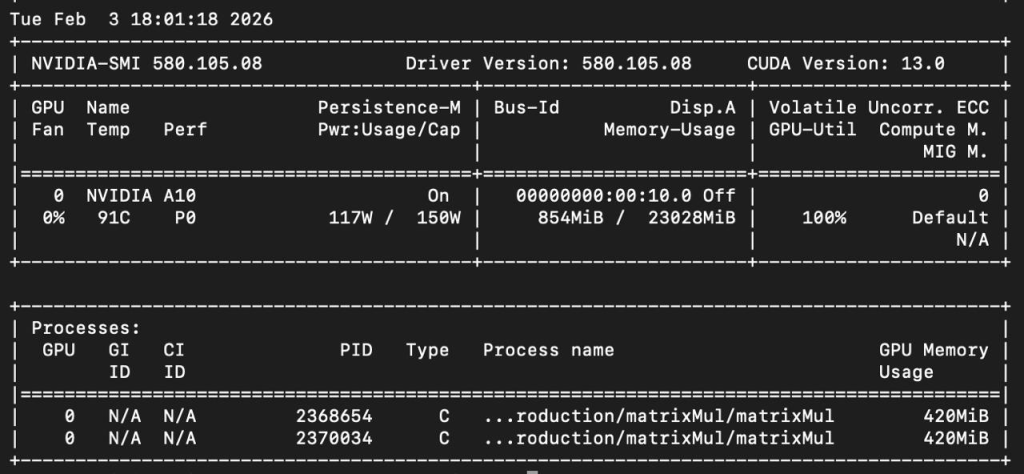
Inside the pod you can see that it’s running nvidia-smi and the output works which states that GPU was assiged to the pod:
Step 4: Run a GPU Test Workload
NVIDIA-KAI is valuable because it can pack two pods on a shared GPU and enforce policy/queues instead of letting GPU usage become random or wait for a GPU to be available.
Below is a simple example:
- Each pod requests a shared GPU slice.
- Each pod runs a CUDA workload to actually drive utilization.
- Both are scheduled by kai-scheduler.
POD 1 – pod-1.yaml
apiVersion: v1
kind: Pod
metadata:
  name: kai-a10-burner-1
  namespace: kai-test
  labels:
    app: kai-a10-burner
    instance: "1"
    kai.scheduler/queue: default-queue
  annotations:
    gpu-memory: "20"
spec:
  schedulerName: kai-scheduler
  restartPolicy: Never
  containers:
  - name: burner
    image: nvidia/cuda:12.2.0-devel-ubuntu22.04
    resources:
      limits:
        # Replace with your cluster’s shared GPU resource name
        # nvidia.com/gpu.shared: "1"
        # nvidia.com/gpu: 1

    command: ["bash","-lc"]
    args:
      - |
        set -euo pipefail

        apt-get update >/dev/null
        apt-get install -y --no-install-recommends git make g++ >/dev/null

        # Use the CUDA 12.2 samples tag (Makefile-based)
        git clone --depth 1 --branch v12.2 https://github.com/NVIDIA/cuda-samples.git /cuda-samples >/dev/null

        # Build + run deviceQuery
        make -C /cuda-samples/Samples/1_Utilities/deviceQuery -j"$(nproc)" SMS=86 >/dev/null
        /cuda-samples/Samples/1_Utilities/deviceQuery/deviceQuery | sed -n '1,60p'

        echo "Starting GPU load..."

        # Pick a headless sample (no OpenGL) to generate load
        # matrixMul (good GPU load)
        make -C /cuda-samples/Samples/0_Introduction/matrixMul -j"$(nproc)" SMS=86
        while true; do
          /cuda-samples/Samples/0_Introduction/matrixMul/matrixMul -wA=4096 -hA=4096 -wB=4096 -hB=4096 >/dev/null
        done
POD 2 – pod-2.yaml
apiVersion: v1
kind: Pod
metadata:
  name: kai-a10-burner-2
  namespace: kai-test
  labels:
    app: kai-a10-burner
    instance: "2"
    kai.scheduler/queue: default-queue
  annotations:
    gpu-memory: "20"
spec:
  schedulerName: kai-scheduler
  restartPolicy: Never
  containers:
  - name: burner
    image: nvidia/cuda:12.2.0-devel-ubuntu22.04
    resources:
      limits:
        # Replace with your cluster’s shared GPU resource name
        # nvidia.com/gpu.shared: "1"
        # nvidia.com/gpu: 1

    command: ["bash","-lc"]
    args:
      - |
        set -euo pipefail

        apt-get update >/dev/null
        apt-get install -y --no-install-recommends git make g++ >/dev/null

        # Use the CUDA 12.2 samples tag (Makefile-based)
        git clone --depth 1 --branch v12.2 https://github.com/NVIDIA/cuda-samples.git /cuda-samples >/dev/null

        # Build + run deviceQuery
        make -C /cuda-samples/Samples/1_Utilities/deviceQuery -j"$(nproc)" SMS=86 >/dev/null
        /cuda-samples/Samples/1_Utilities/deviceQuery/deviceQuery | sed -n '1,60p'

        echo "Starting GPU load..."

        # Pick a headless sample (no OpenGL) to generate load
        # matrixMul (good GPU load)
        make -C /cuda-samples/Samples/0_Introduction/matrixMul -j"$(nproc)" SMS=86
        while true; do
          /cuda-samples/Samples/0_Introduction/matrixMul/matrixMul -wA=4096 -hA=4096 -wB=4096 -hB=4096 >/dev/null
        done
Create the pods
$ kubectl create ns kai-test
$ kubectl create -f pod-1.yaml
$ kubectl create -f pod-2.yaml
$ kubectl get pods -n kai-test -o wide
Check that the pods were scheduled and are running:
$ kubectl get pods
NAME               READY   STATUS    RESTARTS   AGE
kai-a10-burner-1   1/1     Running   0          4m23s
kai-a10-burner-2   1/1     Running   0          4m20s
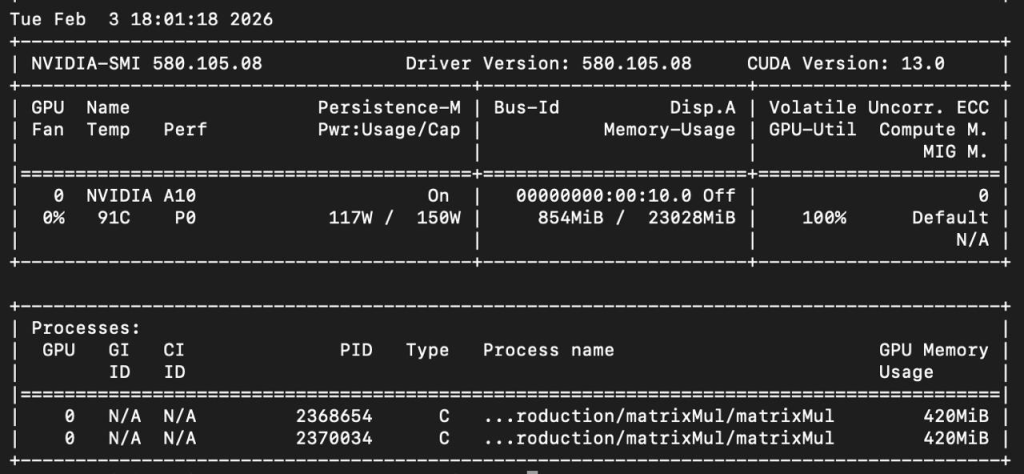
Verify both pods are utilizing the GPU card:
$ kubectl exec -ti nvidia-driver-daemonset-4f226 -n gpu-operator -- nvidia-smi -lYou should see the pod scheduled by kai-scheduler as such:
Step 5: Observe NVIDIA KAI Scheduler Behavior
Now you can:
- Launch multiple GPU jobs
- Test memory-heavy vs light workloads
- Observe how KAI avoids conflicts
You can check the desicion and assignment at the scheduler pod of kai using the following command:
$ kubectl logs -f -n kai-scheduler kai-scheduler-default-69d798b975-4g7zmYou should see similar output as follows:
2026-02-03T19:00:55.447Z	INFO	scheduler/scheduler.go:116	[wvgzV2] Start scheduling ...
2026-02-03T19:00:55.448Z	INFO	framework/session.go:353	[wvgzV2] Taking cluster snapshot ...
2026-02-03T19:00:55.452Z	INFO	framework/session.go:361	[wvgzV2] Session wvgzV2 with <2> Jobs, <2> Queues and <7> Nodes
2026-02-03T19:00:55.452Z	INFO	resource_division/resource_division.go:64	[wvgzV2] Resource division result for queue <default-parent-queue>: Queue Priority: <100>, GPU: deserved: <0>, requested: <0.02>, maxAllowed: <Unlimited>, allocated: <0.02>, historicalUsage: <0>, fairShare: <0.02> CPU (cores): deserved: <0>, requested: <0>, maxAllowed: <Unlimited>, allocated: <0>, historicalUsage: <0>, fairShare: <0> memory (GB): deserved: <0>, requested: <0>, maxAllowed: <Unlimited>, allocated: <0>, historicalUsage: <0>, fairShare: <0>
2026-02-03T19:00:55.452Z	INFO	resource_division/resource_division.go:64	[wvgzV2] Resource division result for queue <default-queue>: Queue Priority: <100>, GPU: deserved: <0>, requested: <0.02>, maxAllowed: <Unlimited>, allocated: <0.02>, historicalUsage: <0>, fairShare: <0.02> CPU (cores): deserved: <0>, requested: <0>, maxAllowed: <Unlimited>, allocated: <0>, historicalUsage: <0>, fairShare: <0> memory (GB): deserved: <0>, requested: <0>, maxAllowed: <Unlimited>, allocated: <0>, historicalUsage: <0>, fairShare: <0>
2026-02-03T19:00:55.452Z	INFO	proportion/proportion.go:248	[wvgzV2] Total allocatable resources are <CPU: 15.285 (cores), memory: 152.425 (GB), Gpus: 1>, number of nodes: <7>, number of queues: <2>
2026-02-03T19:00:55.453Z	INFO	snapshot/snapshot.go:67	[wvgzV2] Snapshot plugin registering get-snapshot
2026-02-03T19:00:55.453Z	INFO	allocate/allocate.go:47	[wvgzV2] [allocate] Enter Allocate ...
2026-02-03T19:00:55.453Z	INFO	allocate/allocate.go:57	[wvgzV2] [allocate] There are <0> PodGroupInfos and <1> Queues in total for scheduling
2026-02-03T19:00:55.453Z	INFO	allocate/allocate.go:77	[wvgzV2] [allocate] Leaving Allocate ...
2026-02-03T19:00:55.453Z	INFO	consolidation/consolidation.go:33	[wvgzV2] [consolidation] Enter Consolidation ...
2026-02-03T19:00:55.453Z	INFO	consolidation/consolidation.go:49	[wvgzV2] [consolidation] There are <0> PodGroupInfos and <1> Queues in total for scheduling
2026-02-03T19:00:55.453Z	INFO	consolidation/consolidation.go:78	[wvgzV2] [consolidation] Leaving Consolidation ...
2026-02-03T19:00:55.453Z	INFO	reclaim/reclaim.go:48	[wvgzV2] [reclaim] Enter Reclaim ...
2026-02-03T19:00:55.453Z	INFO	reclaim/reclaim.go:58	[wvgzV2] [reclaim] There are <0> PodGroupInfos and <1> Queues in total for scheduling
2026-02-03T19:00:55.453Z	INFO	reclaim/reclaim.go:100	[wvgzV2] [reclaim] Leaving Reclaim ...
2026-02-03T19:00:55.453Z	INFO	preempt/preempt.go:47	[wvgzV2] [preempt] Enter Preempt ...
2026-02-03T19:00:55.453Z	INFO	preempt/preempt.go:57	[wvgzV2] [preempt] There are <0> PodGroupInfos and <1> Queues in total for scheduling
2026-02-03T19:00:55.453Z	INFO	preempt/preempt.go:97	[wvgzV2] [preempt] Leaving Preempt ...
2026-02-03T19:00:55.453Z	INFO	stalegangeviction/stalegangeviction.go:30	[wvgzV2] [stalegangeviction] Enter StaleGangEviction ...
2026-02-03T19:00:55.453Z	INFO	stalegangeviction/stalegangeviction.go:39	[wvgzV2] [stalegangeviction] Leaving StaleGangEviction ...
2026-02-03T19:00:55.453Z	INFO	scheduler/scheduler.go:138	[wvgzV2] End scheduling ...
Summary
NVIDIA KAI Scheduler brings production-grade intelligence to GPU scheduling in Kubernetes. This helps organizations move from strict GPU allocation to dynamic policy-driven, efficient utilization. Using this open source project, organizations can add control, visibility and prepare for scale. As AI workloads grow, tools like NVIDIA’s KAI become essential for performance driver organizations who wants to provide GPU as a service inside their organizations with fairness across teams and services.
In this post we’ve seen how Deploying and Using NVIDIA KAI Scheduler in Production can help achieve that. At Octopus Computer Solutions we support data scientists and AI engineers with practical CUDA optimization, model performance tuning, and smart GPU scheduling workflows. We help teams adopt tools like KAI to remove GPU bottlenecks and turn research code into efficient, shareable workloads.
